The Meteogram Forecast View
1 Overview
The Meteogram forecast screen starts at the top with a Now panel presenting the spot's current-hour conditions (described in detail in Chapter 3: Favorites Screen & Now panel).
While the Timeline view delivers discrete vertical cards for each hour, the Meteogram view provides a continuous, graphical curve chart of weather dynamics over time. It allows sports enthusiasts and forecasters to grasp weather inflection points, thermal buildups, and frontal passages at a single glance.
The screen is structured with one meteogram per day, plotting all parameters across the hours that matter most to you.
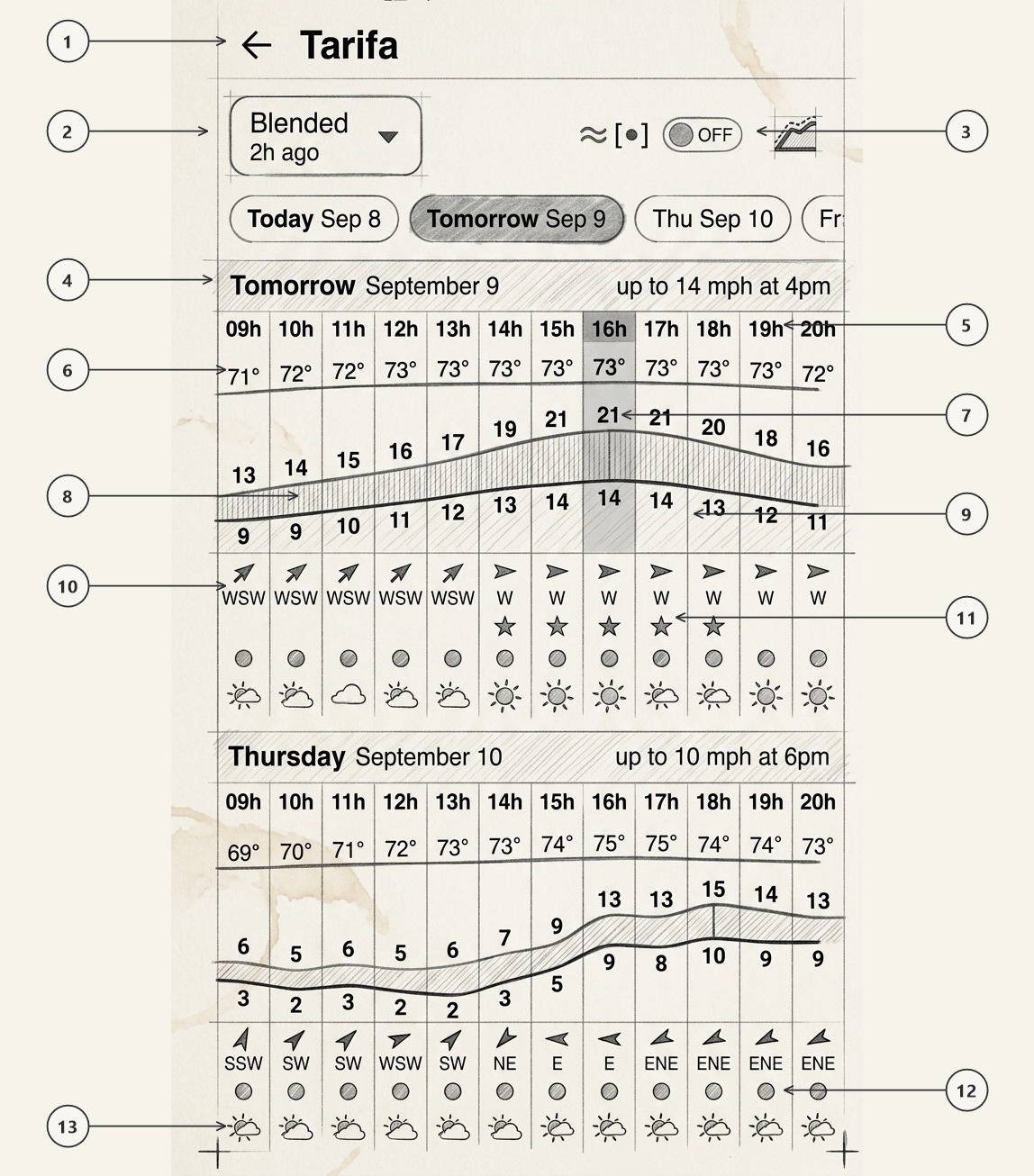
Back Navigation & Spot Title
Top navigation bar showing back arrow (←) returning directly to your spot list, alongside the spot name (e.g. Tarifa).
Model Selector Dropdown
Active weather model button defaulting to Blended ▾ with initialization time (e.g. 2h ago). Tap to switch numerical models.
Wave Toggle & View Mode Switcher
Top right action controls: wave switch (≈ [•]) toggling marine swell rows, and chart view switcher icon representing the active Meteogram view.
Day Header & Daily Maximum Highlights
High-contrast date divider (e.g. Tomorrow September 9) paired with the day's peak highlight (e.g. up to 14 mph at 4pm).
Selected Viewing Hours (Time Axis)
Configurable daytime timeline (e.g. 09h to 20h) fitting the entire productive session across the screen without scrolling. Tapping an hour column highlights that vertical slice across all parameters.
Ambient Temperature Row
Continuous air temperature values (e.g. 71°, 72°, 73°...) aligned horizontally directly above the wind curves.
Peak Gust Curve
Upper graphical curve plotting forecasted peak wind gusts across time (e.g. climbing smoothly from 13 to 21 mph).
Gust Envelope Shading
Hatched/colored area between sustained and gust curves, using Windguru's official color scale to visually emphasize turbulent, gusty conditions.
Sustained Wind Speed Curve
Bold baseline curve showing 10-meter sustained wind velocity (e.g. 9, 10, 14 mph) throughout the day.
Wind Direction Arrows & Headings
Precision navigation arrows rotated to show compass heading, accompanied by cardinal labels (WSW, W).
Windguru Stars Rating Row
Windguru's proprietary star rating (★ ★ ★) assessing wind sport session quality based on wind speed and stability.
Hourly Model Consensus Dots
Color-coded agreement dots (active when "Blended" is selected). Tap any dot to view the multi-model breakdown modal.
Weather Condition Icons Row
Hourly sky icons (sun, clouds, rain) depicting cloud coverage and precipitation (or optional rain/cloud bar graph).
2 Selected Viewing Hours: No Cluttered Nights
Standard meteorological charts often waste screen width displaying 24 continuous hours per day—forcing you to horizontally scroll past 10 hours of pitch-black night just to see tomorrow's afternoon conditions.
In Windguru+, each daily meteogram covers selected viewing hours (5) configured in user preferences:
5 Customizable Viewing Window
In App Settings, you can customize your start and end viewing hours (e.g. 09h to 20h for active daylight, 06h to 22h for dawn-patrol surfers, or 11h to 19h for thermal windsurfers). The meteogram adapts dynamically to your personal window, fitting the entire productive day across your screen without horizontal scrolling.
3 Consensus Dots & The "Blended" Interactive Rule
Each hourly column in the meteogram features the interactive color-coded Consensus Dot (12):
Consensus dots are active and colored only when the forecast model selector (2) is set to "Blended".
- When "Blended" is active: The dot color indicates cross-model agreement for that hour, verifying both speed and direction simultaneously so shifts are caught instantly (Green = Strong harmony, Amber = Moderate spread, Red = Diverging scenarios; see Chapter 1, Section 4). Tapping any consensus dot opens the live Model Breakdown Sheet, allowing you to audit individual model contributors (e.g. AROME, ECMWF, GFS, ICON) and wave models directly.
- When a single model is selected: Consensus dots are hidden because only that single run's data is plotted on the curves.
4 Day Headers: Daily Maximum Wind & Wave
Each day's meteogram is preceded by a prominent section banner (4, e.g. Tomorrow September 9, Thursday September 10):
PEAK Daily Maximum Wind & Peak Hour
Displays the strongest wind event expected during that day's viewing window (e.g. up to 14 mph at 4pm or up to 10 mph at 6pm). Forecasters can immediately spot whether the peak occurs early afternoon or late evening.
SWELL Daily Maximum Wave & Swell
When the wave toggle switch (3) is active, the day header simultaneously computes and displays the day's maximum significant wave height and period (e.g. max 7.7 ft at 16h).
5 Preferences: Weather Icon vs. Rain/Cloud Bar Graph
In App Preferences, Windguru+ offers a specialized display toggle controlling the bottom Weather Condition Row (13) tailored for data-driven forecasters:
"Replace weather icons with rain/cloud bar graph"
| Setting Mode | What Is Displayed | Best Used For |
|---|---|---|
| Weather Icons (Default) | Icons showing sun, fair-weather clouds, overcast skies, or rain clouds. | Quick, intuitive visual reading of general sky condition and sunshine. |
| Rain & Cloud Bar Graph | Vertical stacked mini-bar graph in each column showing exact millimeter precipitation bars and three-tier cloud layer shading (high, mid, low). | Detailed precipitation analysis, pinpointing exact squall timing, convective rain showers, and solar radiation potential for thermal wind creation. |