The Map Forecast View
1 Overview
The Map forecast screen starts at the top with a Now panel presenting the spot's forecast conditions for the active hour (described in detail in Chapter 3: Favorites Screen & Now panel), dynamically synchronized with the time scrubber below.
While the Timeline, Meteogram, and Classic views present meteorological predictions through chronological feeds, curves, and tabular grids, the Map Forecast view projects weather directly onto geographic reality. It pairs high-resolution satellite coastline imagery with a massive, localized radial compass anchored directly over the spot's GPS coordinates.
By scrubbing through hours and days using the bottom timeline slider, forecasters, sailors, kitesurfers, windsurfers, and paragliders can visually evaluate how forecast wind bearings interact with local coastal geography, headlands, bays, and open water.
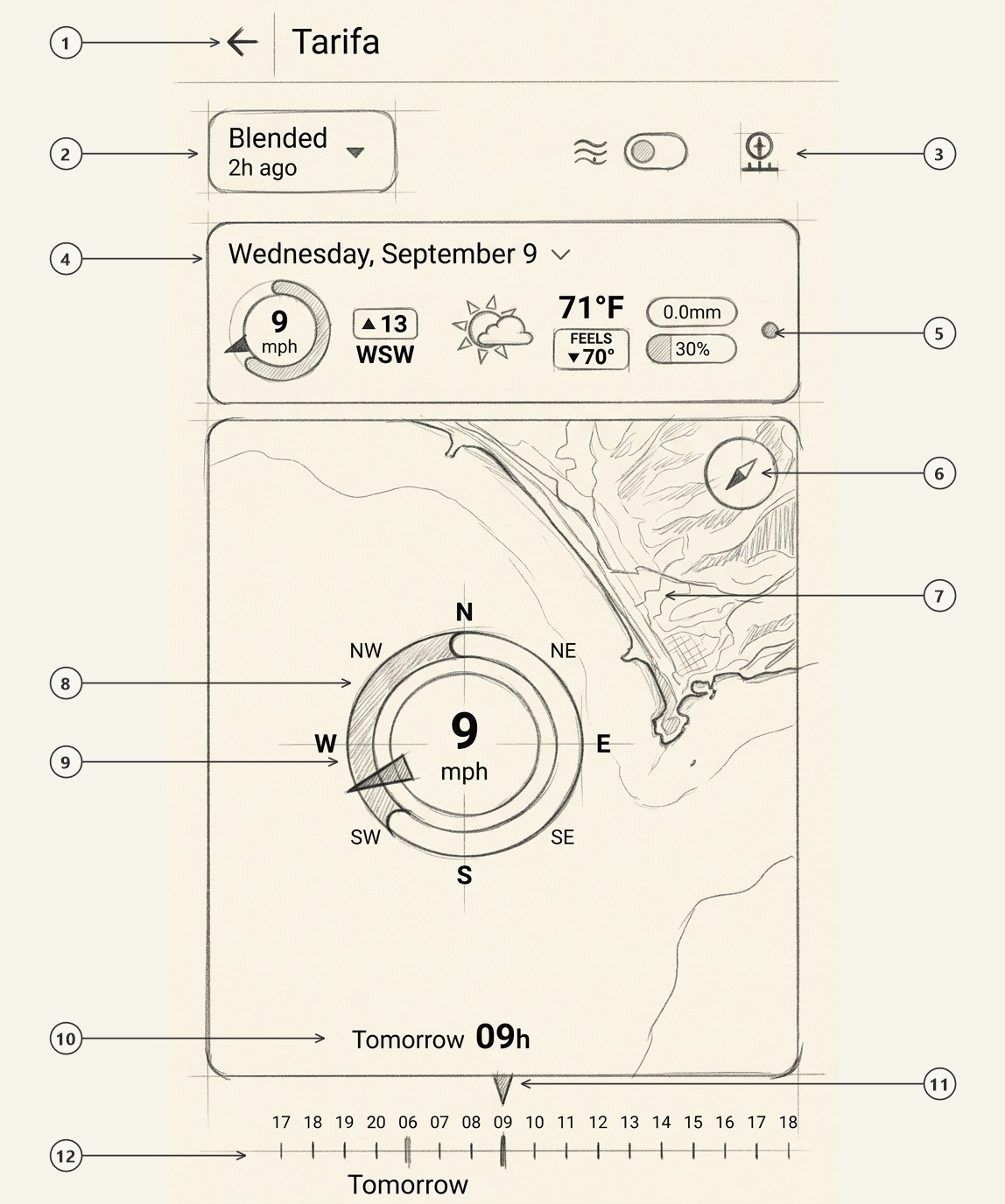
Back Navigation & Spot Title
Top navigation bar showing back arrow (←) returning directly to your spot list, alongside the spot name (e.g. Tarifa).
Model Selector Dropdown
Active weather model button defaulting to Blended ▾ with initialization timestamp (e.g. 2h ago). Tap to choose either the multi-model blended ensemble or a single model (GFS 13km, ICON 13km, IFS-HRES 9km, GDPS 15km, etc.).
Wave Toggle & View Mode Switcher
Top right action controls: wave switch (≈ [•]) turning sea and swell overlays ON or OFF, and compass-on-map icon (⊕) switching between Map Forecast, Timeline, Meteogram, and Classic Grid.
Active Forecast Hour Card
Synchronized condition card (e.g. Wednesday, September 9) updating in real time as you scrub: wind speed (9 mph), gusts (▲ 13), heading (WSW), temp (71°F), rain, and clouds.
Active Hour Consensus Dot
Color-coded agreement dot on the forecast card (Blended mode only). It is an indicator only: to see the per-model details, use the Timeline, Meteogram, or Classic view.
Recenter & Geographic North Button
Circular compass rose button in the upper-right of the map. Tapping it recenters the viewport on the spot and re-aligns to true North.
High-Resolution Satellite Coastline Map
Interactive satellite basemap showing real geographic topography: beach dunes, shoreline curvature, reefs, headlands, and open ocean water.
Centered Spot Compass Gauge
Oversized radial compass anchored at the spot GPS coordinates, featuring 8 cardinal labels, central wind speed hub (9 mph), and directional pointer needle.
Perimeter Gust Arc
Dynamic outer arc sweeping clockwise around the dial, visually rendering the gust envelope and turbulence intensity for the selected hour.
Active Hour & Date Tag
High-contrast overlay tag (e.g. Tomorrow 09h) pinned at the bottom-left of the map canvas for unambiguous temporal context.
Active Hour Scrubber Pointer
Inverted triangle pointer and highlighted tick mark (e.g. pinned on 09) showing the scrubbed position along the timeline.
Continuous Timeline Scrubber Axis
Touch-enabled horizontal ruler spanning active hours across days (17, 18... 06, 07, 08, 09...) with prominent date section dividers (Tomorrow).
2 Active Hour Forecast Card & The "Blended" Rule
The forecast card positioned directly above the map (4) displays the meteorological parameters for the active hour selected by the timeline scrubber below, accompanied by a color-coded Consensus Dot (5) pinned to the right edge of the card:
The consensus dot is shown and colored only when the forecast model selector (2) is set to "Blended".
- When "Blended" is active: The dot color indicates cross-model agreement for the scrubbed hour (Green = Strong agreement, Amber = Mixed signals, Red = Models diverging).
- When a single model is selected: The consensus dot is hidden because the card and map display output exclusively from that single numerical run.
3 Spot Compass Overlay & Coastline Satellite Map
The central canvas provides a direct aerial perspective of the spot, combining high-resolution satellite terrain with an oversized Windguru compass gauge, corresponding to callouts 6 through 10 on the sketch:
6 Recenter & Geographic North Button
Tapping the circular compass rose icon in the upper-right corner of the map canvas instantly recenters the view back onto the spot marker and resets map orientation to true geographic North.
7 High-Resolution Satellite Coastline Map
Renders real geographic imagery showing beaches, dunes, sandbars, rocky reefs, cliffs, and headlands (such as Punta de Tarifa). Users can freely pan and pinch-to-zoom to explore launch spots and downwind zones.
8 Centered Spot Compass Gauge
Anchored directly over the spot's GPS location. Features 8 cardinal tick labels (N, NE, E, SE, S, SW, W, NW), an inner sustained wind speed hub (9 mph), and a directional pointer needle showing true wind bearing.
9 Perimeter Gust Arc
Sweeps clockwise around the outer ring from the baseline sustained speed to peak gust velocity, visually communicating turbulence and squall risk at a single glance.
10 Active Hour & Date Indicator Tag
A high-contrast overlay tag at the lower-left of the map (e.g. Tomorrow 09h) clearly identifies the exact forecast hour currently represented on the map canvas.
4 The Timeline Scrubber: Scrubbing Across Days & Hours
Pinned to the bottom of the screen is the continuous horizontal timeline scrubber, corresponding to callouts 11 and 12 on the sketch:
11 Active Pointer & Marker
An inverted triangle pointer and highlighted tick mark (e.g. pinned on 09) indicate the active hour currently displayed on the map canvas and top forecast card.
12 Continuous Hourly Axis & Date Dividers
A continuous ruler displaying chronological forecast hours (17, 18, 19, 20, 06, 07, 08, 09...) across daylight hours, with prominent date section dividers (Tomorrow) beneath the ruler.
FLOW Fluid Real-Time Feedback
Dragging your finger along the scrubber updates the compass needle rotation (8), gust arc sweep (9), speed value, and top weather card (4) simultaneously with zero lag, providing an intuitive "weather movie" of approaching wind shifts.
10h to 17h reveals the exact hour when the sea breeze activates, swings onshore, and reaches its peak strength.
5 Onshore, Sideshore & Offshore: Reading the Wind Against the Coast
Combining the satellite terrain (7) with the spot compass (8) shows at a glance how the wind meets the shoreline. Here is some advice for each wind orientation:
| Wind Orientation | How It Looks on the Map | Advice |
|---|---|---|
| Onshore Blowing Sea → Land |
Compass needle points towards the beach or the shoreline dunes. | The wind brings you back towards the beach. Expect waves and shorebreak to build quickly, with choppy water. |
| Sideshore Blowing Parallel to Coast |
Compass needle runs parallel to the coastline. | Usually the most comfortable orientation for kitesurfing, windsurfing, and wing foiling: steady wind, easy runs along the beach, and easy landings. |
| Offshore Blowing Land → Sea |
Compass needle points away from the beach towards open water. | Best left to experienced riders: the water near the beach looks flat, but the wind carries you away from the shore and is often gusty because of obstacles inland. Ideally ride with boat support. |
| Side-Offshore Angled Land → Sea |
Compass needle crosses the coastline diagonally towards open water. | Calls for good upwind riding. Can give excellent wave-riding conditions when the swell comes from the opposite direction. |